Product Help
and Guides

Just click a category below to find easy, step-by-step guides for your devices and services. From remote help to DVR features and more.

TV

Remote Guides

Playlist

6 Videos

Playlist

6 Videos

Playlist

6 Videos
Click Image to Enlarge
  1. Manually turn ON the TV that you want to setup on the remote.
  2. Press and hold the SETUP button until the TV key blinks twice.
  3. Press and release the TV key. The TV key will stay lit.
  4. Find your TV and brand from the chart and note the “Digit” key assigned to your brand. Press and hold down the digit key for your device/brand while pointing the remote to the device.
  5. Let go of the key when your device turns OFF. Setup for that device is complete.
Digit Brand
1
Insignia
2
LG
3
Panasonic
4
Philips/Magnavox
5
Samsung
6
Sanyo
7
Sharp
8
Sony
9
Vizio
0
Westinghouse

The AUD, DVD and VCR buttons on your remote have default setting which means they are automatically set to the STB. If you would like to program these mode keys to your devices, please follow the instructions below to lock the default setting.

  1. Press and hold SETUP until the light blinks twice
  2. Enter 9 9 2
  3. Press the button you want to program (AUD, DVD, or VCR) two times

This will remove the set-top device mode and a new Audio, DVD or VCR code can now be programmed.

  1. To program one of these devices, turn ON the device you want to connect
  2. Press and hold SETUP until the light blinks twice
  3. Press the device button (AUD, DVD, or VCR) once
    • The light will stay lit
  4. Find your device brand in the chart to the right
  5. Press and hold the number (digit) for your brand
  6. Keep holding until the device turns OFF
  7. Release the button

Done! Your remote is now set up for that device.

DVD/VCR

Digit Brand
1
Insignia
2
LG
3
Panasonic
4
Philips, Magnavox
5
RCA
6
Samsung
7
Sharp
8
Sony
9
Toshiba
0
VIZIO
Digit Brand
1
Bose
2
Denon
3
LG
4
Onkyo
5
Panasonic
6
Philips
7
Pioneer
8
Samsung
9
Sony
0
Yamaha

Audio

When you first turn on the TV, there are three easy ways you can see what is currently showing. You can use the OK button, the Info button or the Browse button.

Using the OK Button (Now Playing)

  1. Press the OK button on the remote control. You will now see the title of what you are currently watching, the channel name and number, the current temperature outside, the date, and the time.
Using the INFO Button
  1. Press the INFO button on the remote control. You will now see the title of what you are currently watching, a progress bar denoting how much time remains in the show, a preview of what is on next, the channel name and number, the current temperature outside, the date, and the time.
    • If you are viewing a live program you can press the right/left arrow buttons to view what is showing later on the current channel. Or, press the up/down buttons to view what is showing on another channel.
    • Press the Day + and Day – buttons to see what is on this channel, 24hours from now.
  2. Press the INFO button a second time (in quick succession to the first). You will now see a description and other details regarding the show you are watching.

Using the Browse Button

  1. Press the Browse (right arrow) button on the remote control. At the top of the screen, you see the channel you are currently tuned to. At the bottom of the screen you see the channel number, channel name, current date and time, program name, date and time the program airs, a progress bar showing how far along the program is, and the program that airs next.
  2. Press the right/left arrow buttons to view what is showing later on the current channel. Or, press the up/down arrows to view what is showing on another channel.
  3. Press the Day + and Day – buttons to see what is on this channel, 24 hours from now.
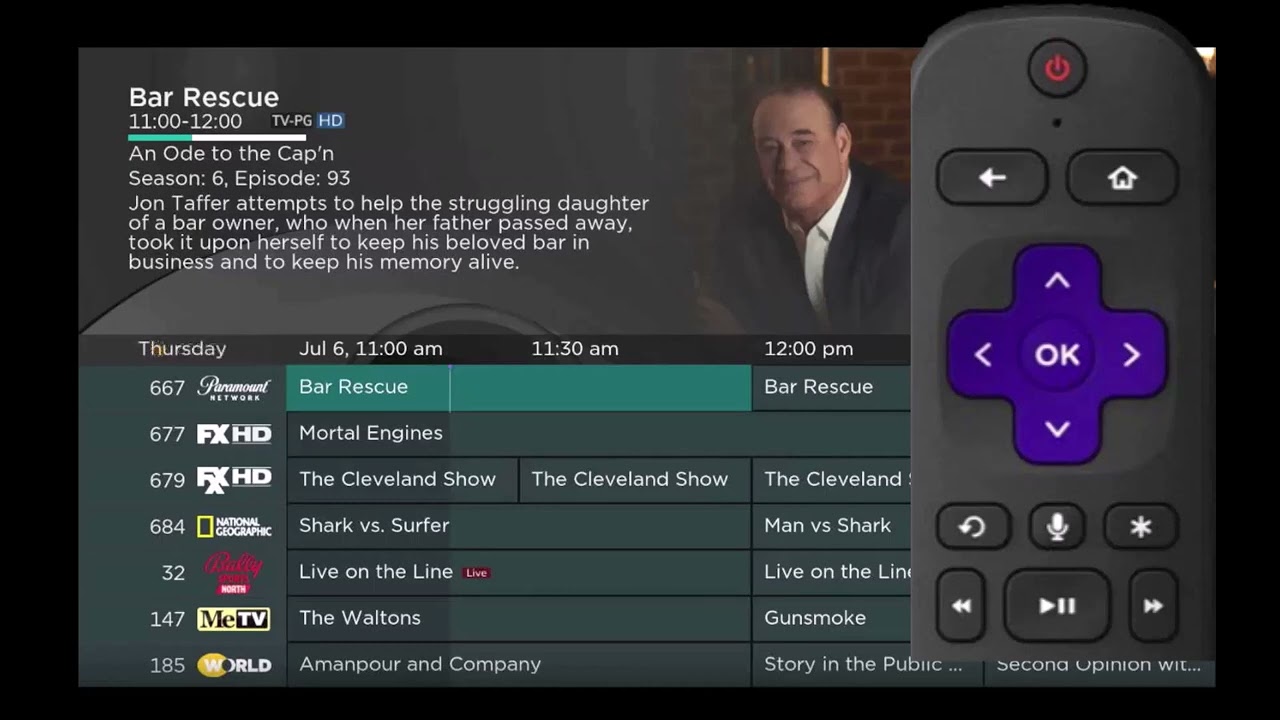
  1. Press the Guide button on the remote control. Information about the program you are tuned to displays at the top of the screen along with indicators if the show is in HD, if the program is a new episode, and if the broadcast is in HD. Other channels and their programs will show at the bottom of the screen. Shows that started prior to the current time slot are indicated with a blue arrow prior to the program name. Shows that continue past the last time slot shown on the guide are indicated with a blue arrow after the program name. Programs scheduled for recording will be marked with a red circle.
  2. To move through the guide one channel at a time, press the up/down arrow buttons on the remote control. As you do this, a description of the highlighted program will display at the top of the screen. Or, press the Channel + and Channel – buttons to scroll through the channels more quickly.
  3. To move through the guide one page at a time, press the Page + (up) and Page – (down) buttons on the remote control.
  4. To move through the guide one screen at a time, use the fast forward and rewind buttons.
  5. To move through the guide a full 24 hours, press the Day + and Day – buttons on the remote control. You cannot use the Day – button to go back in time. However, you can use it to page back if you have moved ahead in the guide.
  6. To see programs you missed, press the Skip Back button to go back one page in the guide. If there was a program you missed, you could search for other programs of the same name and schedule the DVR to record the program.
  7. While in the Guide, if you press the Guide button a second time, you can view the guide in Channel Guide view where similar information is displayed in a different format.
  8. To browse through the guide using a Favorites list, press the blue button or the Favorite Menu. The list name will appear at the bottom of the screen. Keep pushing the blue button to scroll through the different Favorites lists.
  9. To Exit the Guide, either press the Guide button a third time or press the Exit button on the remote control.

If you like to be able to surf within only a specific set of channels, you can create Favorites lists. By default, your set-top has grouped channels into several pre-set Favorites lists including: All Channels, Subscribed Channels, Movie Channels, Sports Channels, Music Channels, Entertainment Channels, Kids Channels, News Channels, Business News Channels, Infotainment Channels, Religious Channels, Regional Channels and HD Channels. You may create up to five additional Favorites lists.

  1. Press the Menu button to access the Main Menu. Arrow right and then down to highlight Edit Favorites and then press OK.
  2. If you are not already in a ‘New List’ by default, arrow right to access a New List.
  3. All available channels will display. Use the up/ down arrow buttons on the remote control to move through the list of channels. When you are on a channel you want to add to your list, press the OK button to mark it as part of this Favorites list.
  4. To name the list, press the Yellow button on the remote control.
  5. Use the arrow buttons to move through the letters on the screen. Press OK on the remote control to choose a letter. When you have named your list, arrow down to select the submit button to accept your name.
  6. To Save your favorites list, press the Blue button on the remote control and then press OK.
  7. To Discard a favorites list, press the Red button on the remote control.
  8. Press the Exit button on the remote control to leave the menu.

There are search capabilities that allow you to either search for a full title of a program or for a word or two within a title. You can use the Search feature in the guide to find all instances of a program by title, or you can use the Search feature to enter a partial name and search for all instances of the word to locate the desired program. This works well if you can’t recall the full name of a program or movie. All of the search functions will give you search results from TV Airings and Recordings.

Perform a Title Search Within the Guide

  1. While viewing the Guide, select the desired program using the arrow buttons, then press the Search button (yellow button) on the remote control.
  2. This will perform a full title search to return all shows with the same title. In this example, the search found all shows titled “Ace of Cakes.”
  3. If there is a program in the search results you would like to record, you may schedule a recording from the list of search results. Use the up/down arrows to highlight the program and press Record or OK on the remote control. Follow the steps to schedule a recording.

Perform a Partial Text Search Using the Search Button the Remote Control

  1. While viewing any program (and not in the Guide or other menus), press the Search button (left arrow) on the remote control. This will display a search window where you can enter the first few letters or one or two words in the program title.
  2. Use the arrow keys on the remote control to highlight the letters and press OK to select a letter. When you have entered all the text, arrow down to Submit and press OK or just push the yellow button to start the search.
  3. If there is a program in the search results that you would like to record, you may schedule a recording from the list of search results. Simply use arrow buttons to highlight the program and then press OK or Record on the remote control. Follow the steps to schedule a recording.
  4. You may also continue to search for more programs by the same name. Select the program and push the yellow button to search for all scheduled airings.

Search History

The Search History feature will allow you to save your searches so that they can be used again at a later time. Up to 18 searches may be retained in the Search History at any given time. The oldest searches will automatically be removed as a new search is performed. Frequently used searches may be saved to prevent removal, and may be sorted to keep them at the top of the History list.

  1. Select the MENU button. Select TV | Search | History.
  2. To delete a recent search, select the Red button on your remote control. The selected search will be removed.
  3. To save a recent search, select the Green button on your remote control. The search will now have a yellow star icon next to it acknowledging that it is now a saved search.
  4. To use a previous search, select the search and press the Yellow button on your remote control.
  5. To sort recent searches, select the Blue button on your remote control. Searches will be sorted by saved searches in alphabetical order and then unsaved searches in alphabetical order.

If you arrow to the right, highlight Parental and press the OK button, you will find Parental Control options to Change PIN, Edit Locked, Set Ratings, Time Restrictions, Cancel Override, and Options.

Change PIN

  1. Within the Parental menu, arrow to the right and select the Change PIN category (For the Ratings PIN or Purchase PIN).
  2. Use the arrow button to highlight change PIN and press the OK button.
  3. Enter the Old PIN, arrow down and enter your New PIN, and then arrow down to confirm the New PIN. Select OK to save your new PIN. Until you change it, the default PIN is 0000
  4.  Once the PIN has been successfully changed, a prompt will appear. Press the OK button.

Edit Locked

  1. If you arrow to the right, highlight Edit Locked and press OK, you can lock specific channels. This will require that a PIN be entered in order to view programming on that channel. To make changes to the Locked Channels, you will first need to enter your PIN.
  2. A list of channels will display. Use the up/down arrow buttons to move through the list of channels. When you arrive at one that you want to lock, press the OK button and the channel will be added to the locked list.
  3. When you are finished making your selections, press the Blue button on the remote to lock the selected channels. Press the Red button on the remote to discard the changes and return to normal viewing.

Time Restrictions

  1. Edit Time Restrictions prompt
  2. Within the Parental menu, arrow to the right and select the Time Restrictions category. The Time Restrictions category allows you to set time periods per day where television access requires a PIN. These time restrictions may be set by selecting the Green button to Add Restriction. A new restriction will appear to the right of the week schedule. Arrow to the right to select a day and press the OK button.
  3. Once a day has been selected, use the Up/Down arrows to select a time and either AM or PM for both start and end time for the time restriction. When you are done creating time restrictions, select the EXIT button.

If you have locked channels from view, you will need to enter a PIN in order to access programming on that channel. 

  1. Imagine the TV is tuned to channel 33. An attempt to enter channel 11 is indicated in green in the browser bar.
  2. Imagine that you previously locked channel 11. Because channel 11 is locked, you are prompted to enter a PIN. Until you change it through the My Settings Menu, the default PIN is 0000.
  3. The Enter PIN screen will remain until a correct PIN is entered or until you press Exit.
  4. Pressing Exit will bring up a screen indicating an invalid PIN was entered. Press the Guide button to browse for another program to watch.

This same result happens when selecting a locked channel from the Guide.

Product Guides

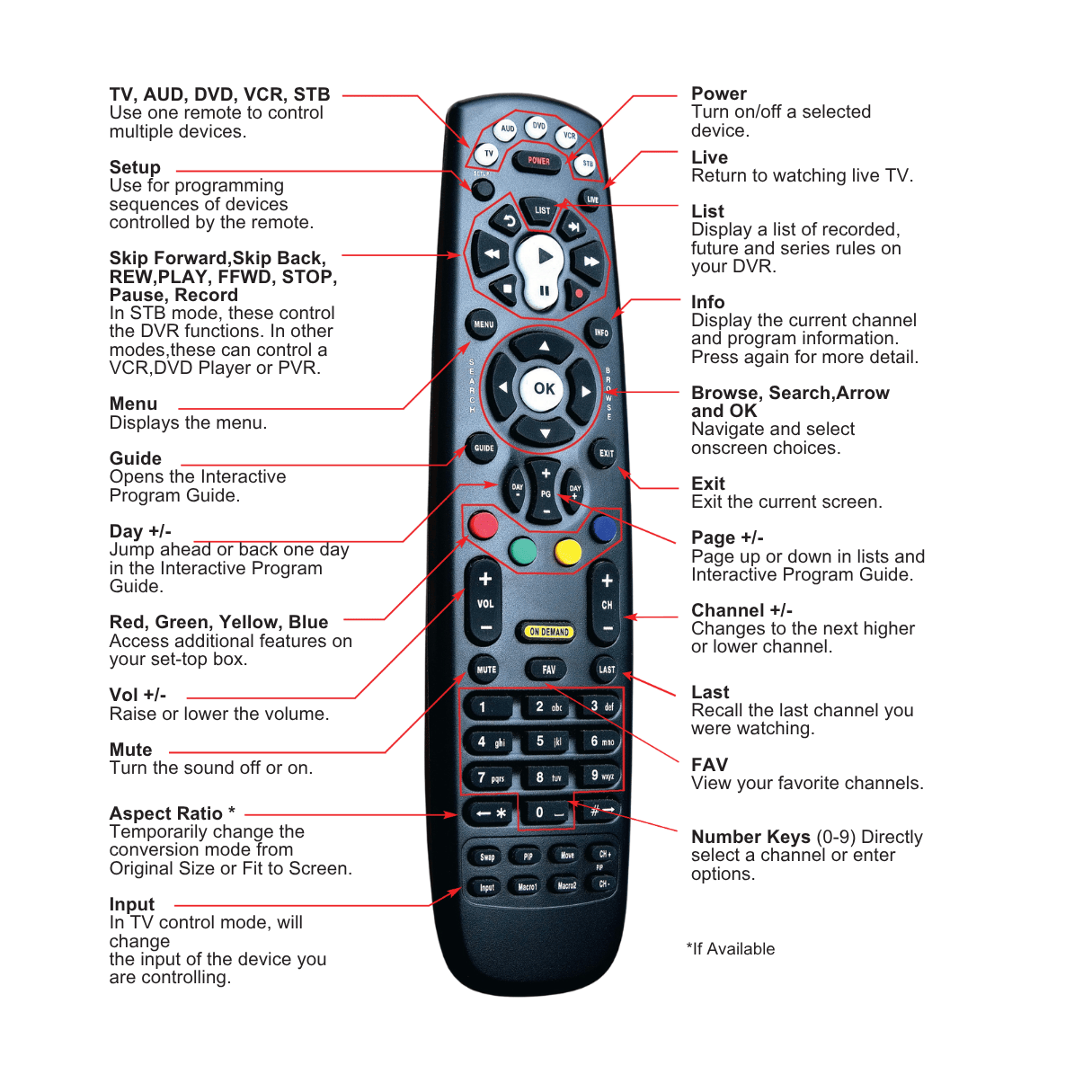
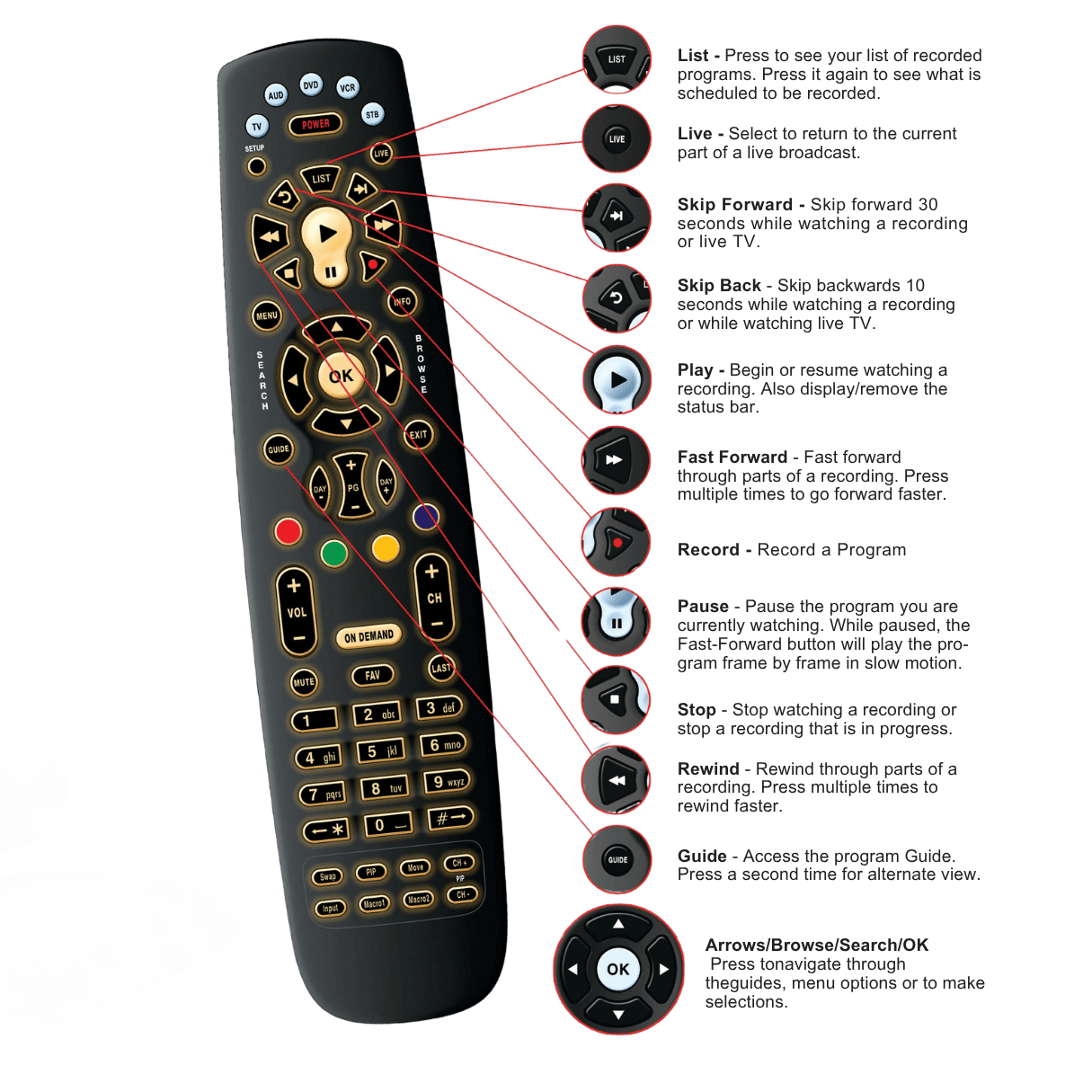
Remote control with highlighted buttons indicating key functions for operation
Click Image to Enlarge

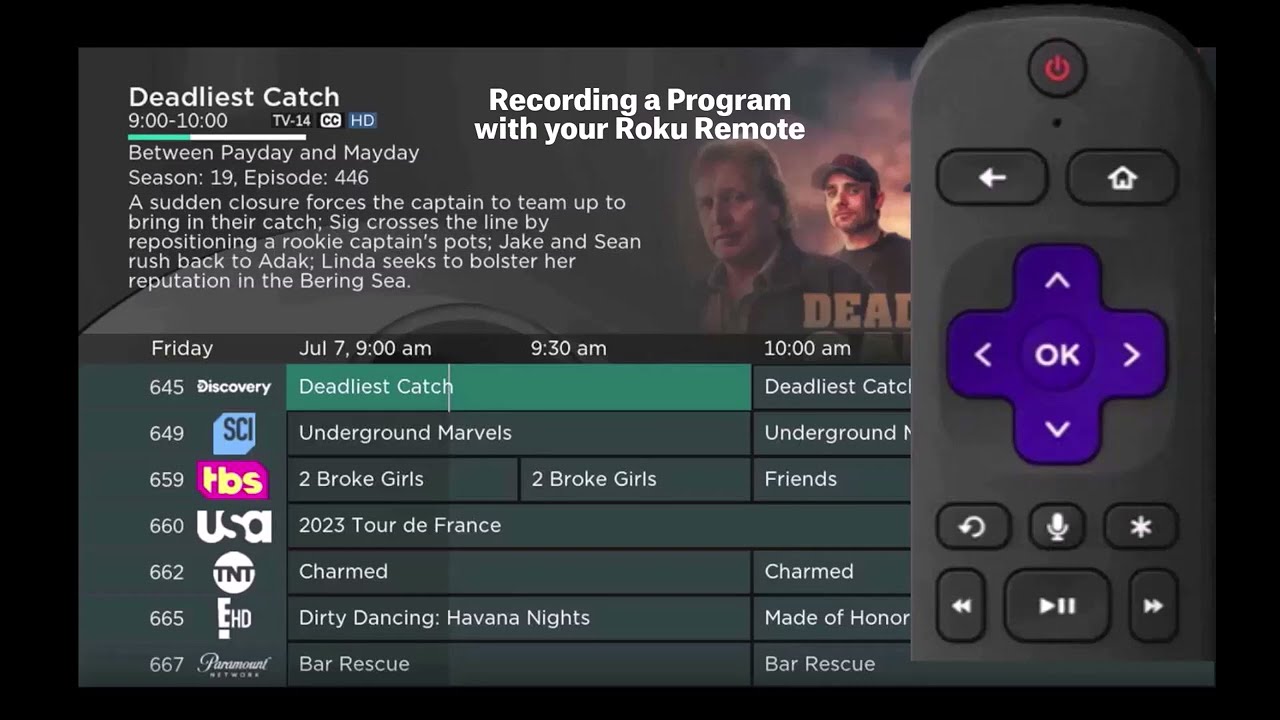
Your DVR service gives you the freedom to record the program you are watching as you are watching it, record a program while you watch another, or you can record a program you see in the program guide. You can also schedule a series recording so you always catch all episodes of your favorite programs.

Note: If a program you record is either locked by parental rating settings or on a channel that is locked, the DVR service will record the program but you will be required to enter a PIN to view it.

If you are watching a program and decide that you want to record the remainder of the program you can easily start the recording.

  1. While watching a program, press the Record button on the remote control.
  2. Choose whether this is a one-time recording, a series recording, or select cancel to not set a recording.
  3. Customize your recording selections for start and stop time and which folder to save the recording to.
  4. At the bottom of the record options is the ability to Record from Start. That will permit you to record the portion of the program you missed.
  5. You can also use the Reminder function from this screen. Choose reminder if you would like your television to remind you when the program is going to air, when a new episode of the program is going to air, or every time the program will air. You may set the reminder for 1, 2, 3, 4, 5, 10 or 15 minutes prior to the program start. You can also choose to have the television automatically tune to the channel when the recording starts. More information on setting Reminders can be found later in this guide.
  6. A Red circle will briefly display in the top right of the screen indicating you are recording the program.
  7. If you decide to stop recording the program before it is complete, press the Stop button. Choose from the options regarding how to save the partial recording. The options are:
    • Stop Recording and Keep – Saves the recording for future use.
    • Stop Recording, Keep and Protect – Saves the recording and protects it from automatic deletion.
    • Stop Recording and Delete – Deletes the recording from memory.
    • Continue Recording – Does not stop recording the program

Whether you are choosing a program from the Guide or if you are currently viewing the program when you decide to record it, the process to create a one-time recording is the same.

  1. From the Guide, highlight the program you want to record and press the Record button on the remote control. The recording options will display.
  2. Choose to create a one-time recording.
  3. Use the arrow keys to customize start & stop times, folder to save the recording to, and auto tune preferences.
  4. Arrow down to “Create One Time Recording” and click OK on your remote control.
  5. A Red circle will display in the guide indicating the program will record.
  6. You will also be able to find the recording in the Future Recordings list.
  7. If you change your mind and decide against recording the program, with the program highlighted on the guide, press Stop on the remote control and the Red circle will be removed indicating the program will not record.
  8. At the bottom of the record options is the ability to Record from Start. That will permit you to record the portion of the program you missed.

Recording a Live Event is essentially the same as recording any other program. However, since there is a chance of a live event running longer than originally scheduled in the programming guide, you have the option to record up to one hour longer in order to be sure you record all of the event. An example would be a major league baseball game or football game.

  1. From the Guide, highlight the program you want to record and press the Record button on the remote control. The recording options will display.
  2. The DVR service recognizes from the program guide information that this is a live broadcast and warns you that it may extend past the designated end time. Use the left/right arrow keys to choose to Stop Recording by 15 minutes, 30 minutes, or 60 minutes.
  3. Arrow down to Extend Recording and press OK on the remote control.

Note: Live programming options will only be available when the Guide Data flags the programming as “live” programming.

Whether you are choosing a program from the Guide or if you are currently viewing the program when you decide to record it, the process to create a series recording is the same:

  1. If you have found a program that you would like to record in the Guide, highlight it and press the Record on the remote control. The recording options will display.
  2. Arrow over to select Series and press OK on the remote control.
  3. The Series Recording Options will display.
    • Choose how many episodes to Keep at Most any given time. Options are 1 – 10 or All episodes. . Use left/right arrow buttons to make your selection.
    • Choose the Show Type that you wish to record. You may choose to record All episodes of a program or just New episodes.
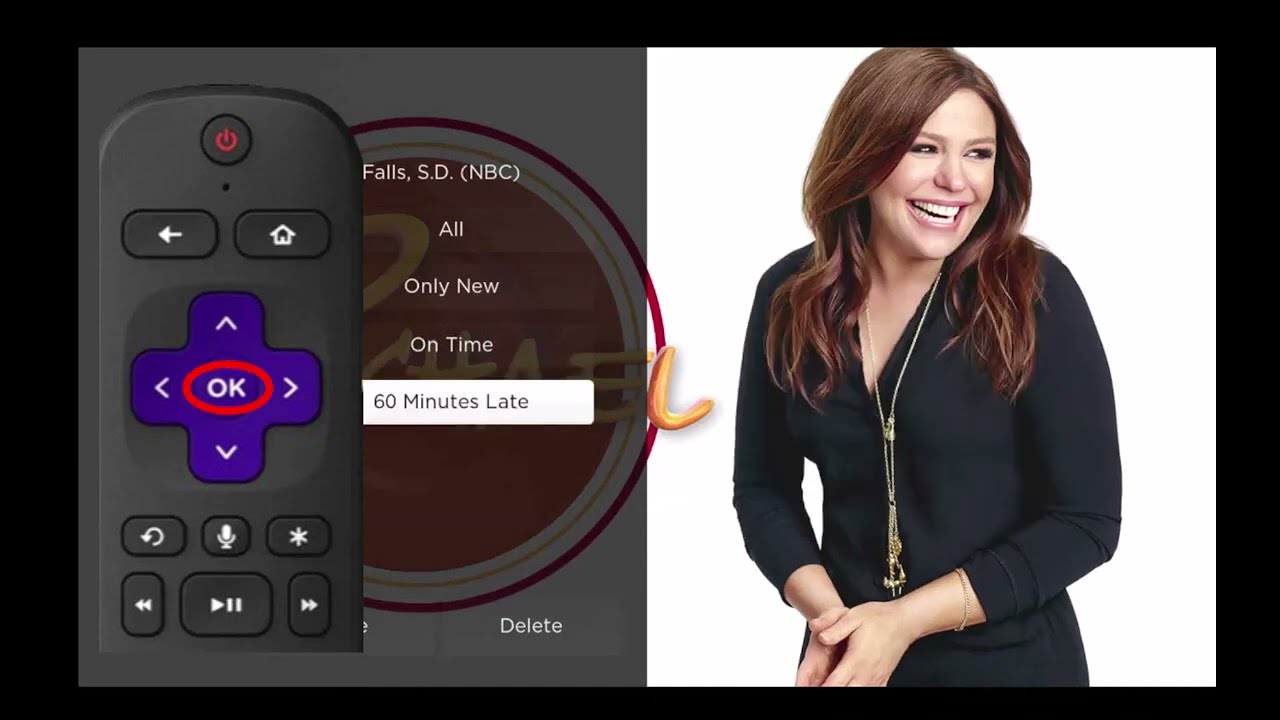
    • Choose when to Start Recording. You can begin ‘on time’ when the program is scheduled to begin. Or you can use the arrow buttons to choose 1, 2, 3, 4, 5,10, 15 or 30 minutes early.
    • Choose when to Stop Recording. You can stop ‘on time’ when the program is scheduled to end. Or you can use the Browse/Arrow (Left or Right) buttons to choose 1, 2, 3, 4, 5,10, 15, 30, or 60 minutes late.
    • Finally choose the Folder where you want to save the recording. By default the folder will be ‘All Recordings’ but you may choose another existing folder or create a new folder.
    • Arrow down to Create Series Recording and press OK on the remote control to save your changes. To Cancel your changes, push Exit or highlight Cancel and press OK on the remote control.
  4. A Red circle with an ‘S’ will display in the guide indicating that the program is part of a series recording.
  5. You will also be able to see the scheduled recording in the Future Recordings list as well as in the Series Rules list

Status Bar
The status bar appears whenever you Skip Forward, Skip Back, Pause, Rewind, or Fast Forward a live or recorded program. It gives you information such as the channel you are viewing, the title of the program you are watching, and the length of the live buffer.

Pause
As you watch live TV or recorded programs, press Pause and the programming on the screen instantly freezes. Press Play to resume normal play of the program from the point where it was paused.

Rewind
Do you need to see something again? Press Rewind. Press it again up to 4 times to increase the rewind speed. x4, x15 and x60 and x300 will display next to the status bar. x4 is the slowest setting and x300 is the fastest. To slow the Rewind speed, press the Fast Forward button. At the point that Rewind is slowed as far is it goes, you will return to normal mode and then Fast Forward mode. Press Play to resume normal play directly.

Fast Forward
Press Fast Forward to move forward in a recorded program. Press it again up to 4 times to increase the fast forward speed. x4, x15, x60 and x300 will display next to the status bar. x4 is the slowest setting and x300 is the fastest. To slow the Fast Forward speed, press the Rewind button. At the point that Fast Forward is slowed as far as it goes, you will return to normal mode and then to Rewind mode. Press Play to resume normal play directly. For programs you are watching live, Fast Forward will be activated if you have paused or rewound the program.

Skip Back
With Skip Back, you can go back to see the last play of the game or replay the last scene of your movie. Just press the Skip Back button on your remote control to replay the last 10 seconds. Press the replay button repeatedly to continue skipping back in 10 second increments.

Return to Live TV
Any time you Pause or rewind a live program, the show continues to be broadcast in real time and saved in the buffer. To return to live programming, press the Live button.

  1. To access the list of recorded programs, press the List button on the remote control.
  2. From the list of recordings, use the up/down arrow buttons to choose the folder containing the recorded program you wish to watch. When you highlight a program, it expands to show more information, or you may need to press the Info button depending on your configuration.
  3. To start playback of the recording, press the Play button on the remote control.
  4. If the program is one that you had previously viewed and stopped in the middle, you will be asked if you would like to Resume playback from where you left off or if you would like to Restart from the beginning or if you would like to Exit and return to the Recordings List.
  5. As you play back a program, you have the ability to Fast Forward, Rewind, Pause, Replay, Jump Forward, Jump Backward or Stop the playback. The Status Bar appears at the bottom of the screen.
  6. When you reach the end of the program, you will be asked if you would like to delete the recording. Choose either Yes or No.

In addition to the option to delete a recording when you have finished viewing it, there are other options for deleting a recording.

  1. To access a list of recorded programs, press the List button on the remote control.
  2. From the list of folders, choose the folder that contains the recordings you want to delete and use the arrow keys to highlight the entire folder or the individual episode you want to delete.
  3. Press the Red button to Delete the recording or group of recordings. Or, press the Green button to access the Actions menu and then choose Delete. You have the option to cancel the process.

Folders allow you to organize the recordings on your DVR service by user, program type, or any other way you may choose.
To create folders, simply choose the [New Folder] op­tion any time you are setting a new recording. Arrow down to select Create One Time Recording and select OK on the remote.
You will then be prompted to name the folder.
Once the recording is com­plete, it will be placed in the designated folder and you can access it by pressing the List button.
To move a program to a differ­ent folder, find the recorded program by pressing the List button. With the program selected, press the green button to reveal List Action options and choose Move to Folder and select the desired folder.

Your television can be set to remind you when a program is about to air and to automatically tune to a program you don’t want to miss.

    1. To set a reminder, press the Guide button and use the arrow buttons to find and highlight the upcoming program you wish to flag with a reminder. Press the Record button on the remote.
    2. Arrow over to select Reminder.
    3. Customize your settings for a one-time reminder, reminders only when a new episode will air, or a reminder for all program airings. You can also select how many minutes before the program starts you want your reminder to appear (1, 2, 3, 4, 5, 10 or 15 minutes early), and whether to automatically tune to the channel when the program begins. Arrow down to highlight Create Reminder and press OK on the remote.
    4. A reminder icon will appear next to the program on the guide to indicate a reminder has been set for that program.
    5. A reminder pop-up will appear at the top of your TV screen at the time you designated. Press OK to begin watching the program at any time or wait for it to change channels automati­cally if you set the auto tune feature.
  1. Show the Status Bar
    • Press Play on your remote while watching a recorded program or during recording.
  2. Add a Bookmark
    • Press the Blue button on the remote at the spot you want to mark.
    • A black line will appear on the status bar indicating your Bookmark.
  3. Go to a Bookmark
    • Press the Up or Down arrow buttons on the remote to jump to your bookmarked spot.
    • If there are multiple Bookmarks, press the arrows repeatedly until you reach the desired spot.
  4. Remove a Bookmark
    • Navigate to the Bookmark you want to delete.
    • Press the Blue button within three seconds to remove it.

Bookmarks would be helpful would be in the case of a television movie that you keep and watch over and over. You could bookmark the end of commercials so that you could skip over those sections of the movie.

You access your recordings, the list of future recordings and series rules by pressing the LIST button on the remote control multiple times.

Current Recordings

The All Recordings folder appears first and includes all of the recordings you have stored with your DVR service. If grouping is enabled in your setting, each program will also have a folder including all recordings of that program. To move in and out of the folders, use the left and right arrow buttons. At the top of the screen you see the number of folders and the amount of space you have available.

When you are in a program folder:

  • Delete a recording by pressing the Red button on the remote control.
  • View the available Actions by pressing the Green button on the remote control. Actions include Play Recording, Edit Item, Information, Go Back, Move to Folder, Protect, Sort List, Close Actions and Delete Recording.
  • Search for programs within the Recording folders by pressing the Yellow button on the remote.
  • Sort the Current Recordings by pressing the Blue button on the remote control. By default, Current Recordings are displayed by date and time. If you press the Blue button, programs will be sorted by Name.
  • Press the Skip Forward button to view recordings by title rather than group.

Current Recording Actions

To view the available Actions, press the Green button on the remote control. The Actions list displays on the right hand side of the screen. To make it easy for you, the list of Actions on the screen shows the corresponding button that you could press on the remote control. It is also possible to highlight your selection and then press OK on the remote control.

  1. To Play the Recording, press the Play button on the remote control.
  2. To extend the end recording time on a recording in progress, use the Edit Item button.
  3. To show or hide Information about the recording, press the Info button. This expands or hides the view of information. Simply highlighting a recording and pausing for a brief moment will also display the information.
  4. To Go Back to the previous screen showing All Recording Folders, press the Left Arrow button.
  5. To Move the recording to a specific folder, select Move To Folder.
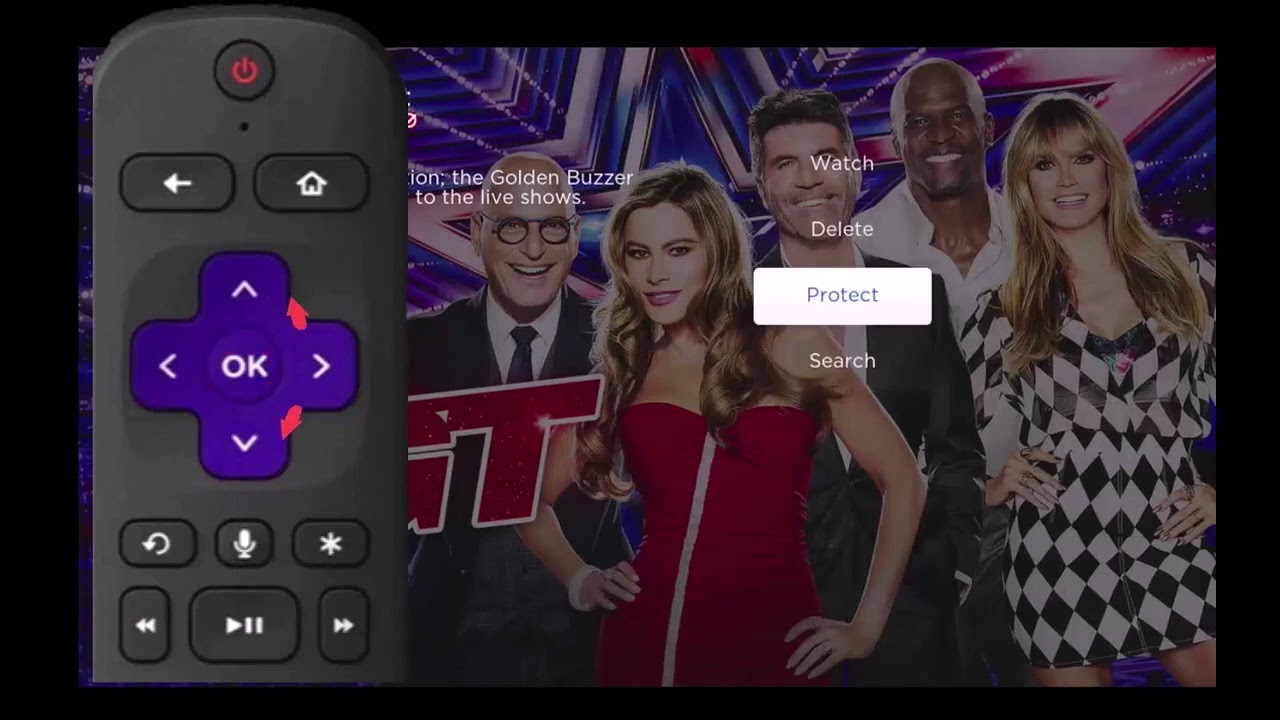
  6. To Protect a recording so that it does not automatically get deleted, use the Browse/Arrow (Up and Down) buttons to highlight the protect option and then press the OK button. When you do, a shield symbol will display next to the program name letting you know that this program is protected. If you want to remove protection from the recording, simply choose Protect again.
  7. To Sort the List of Current Recordings, press the Blue button on the remote control. At the bottom of the screen you will see the sort change to being sorted by Name. Press the Blue button again to change the sort back to date and time.
  8. To Close the Actions, either press the Green button or press the Exit button on the remote control.
  9. To Delete the Recording, press the Red button on the remote control. Select Yes or No to delete and then press OK.

Future Recording

To view your list of Future Recordings, choose Menu > Recordings > Future. These are programming events that are waiting to happen. At the top of the screen you see the number of recordings and the amount of space you have free.

When you are in a program folder:

  • Delete a future recording by pressing the Red but­ton on the remote control.
  • View the available Actions by pressing the Green button on the remote control. Actions include Edit Item, Information, Go Back, Move to Folder, Sort List, Close Actions, and Delete Recording.
  • Search for programs within the Recording folders by pressing the Yel­low button on the remote.
  • Sort the Current Recordings by pressing the Blue button on the remote control. By default, Current Recordings are displayed by date and time. If you press the Blue button, programs will be sorted by Name.
  • Press the Skip Forward button to view recordings by title rather than group.

Future Recording Actions

To view the available Actions, press the Green button on the remote control. The Actions list displays on the right side of the screen. To make it easy for you, the list of Actions on the screen shows the corresponding button that you could press on the remote control. You can also highlight your selection and then press OK on the remote control.

  1. To Edit the Item, press the OK button on the remote control. You can change the time that you Start Recording and Stop Recording. This allows you to begin and/or end recording to allow for time padding around the program.
  2. To show or hide Information about the recording, press the Info button. This expands or hides the view of information. Simply highlighting a recording and pausing for a brief moment will also display the information.
  3. To Go Back to the Future Recordings Folder List press the List button.
  4. To Move the recording to a specific folder, select Move To Folder.
  5. To Sort the List of Future Recordings, press the Blue button on the remote control. At the bottom of the screen you will see the sort change to being sorted by Name. Press the Blue button again to change the sort back to date and time.
  6. To Close the Actions, either press the Green button or press the Exit button on the remote control.
  7. To Delete the Recording, press the Red button on the remote control. Select Yes or No to delete and then press OK.

Series Recording Rules

To view your Series Recording Rules, choose Menu > Recordings > Series. These are the programs that you have set to record on a regular basis. You can make adjustments to your series recording rules from this screen. At the top of the screen you see the number of Series Rules and the amount of space you have free.

  • Delete a rule by pressing the Red button on the remote control.
  • View the available Actions by pressing the Green button on the remote con­trol. Actions include Edit Item, Information, Increase Priority, Decrease Priority, Sort List, Close Actions and Delete Rule.
  • Search for programs in the recordings folders by pressing the Yellow button on the remote.
  • Sort the Series Rules by pressing the Blue button on the remote con­trol. By default, Series Rules are displayed by Priority. If you press the Blue button, programs will be sorted by Name.

Series Rules Actions

To view the available Actions, press the Green button on the remote control. The Actions list displays on the right side of the screen. To make it easy for you, the list of Actions on the screen shows the corresponding button that you could press on the remote control. You can also highlight your selection and then press OK on the remote control.

To Edit the Item, press OK and choose from these options to edit:

  1. Choose how many episodes to Keep at Most any given time. Options are 1 – 10 or All episodes. Use the Browse/Arrow (Left or Right) buttons to make your selection.
  2. Choose the Show Type that you wish to record. You may choose to record All episodes of a program or just New episodes.
  3. Choose when to Start Recording. You can begin ‘on time’ when the program is scheduled to begin. Or you can use the Browse/Arrow (Left or Right) buttons to choose 1, 2, 3, 4, 5,10, or 15 minutes early.
  4. Choose when to Stop Recording. You can stop ‘on time’ when the program is scheduled to end. Or you can use the Browse/Arrow (Left or Right) buttons to choose 1, 2, 3, 4, 5,10, 15, 30, 45, or 60 minutes late.
  5. Finally choose the Folder where you want to save the recording and whether you’d like your television to auto tune to the channel. Arrow down to Update Series Recording and press OK on the remote control to save your changes. To Cancel your changes, highlight Exit and press OK on the remote control.
    • To show or hide information about the recording, press the Info button. This expands or hides the view of information. Simply highlighting a recording and pausing for a brief moment will also display the information.
    • The priority of programs is represented by their order in the list. The top program on the list is the highest priority and the bottom one is the lowest priority. So, if you have several programs scheduled to record at once and the system is unable to provide resources to record all of them, the DVR makes the decision of which to record based on highest priority. To change Priority, simply highlight the Action to Increase or Decrease Priority and then press the OK button to adjust priority.
    • To Sort the List of Series Rules, press the Blue button on the remote control. By default Series Rules are sorted by their Priority. You can change them to sort by Name. Press the Blue button again to change the sort back to Priority.
    • To Close the Actions, either press the Green button or press the Exit button on the remote control.
    • To Delete the Rule, press the Red button on the remote control. Select Yes or No to delete and then press OK.
  • WatchTVEverywhere is included with your Minburn Communications TV package and lets you watch TV anywhere you have an internet connection (at home, at work, in a hotel, airport, shopping mall, or other locations.)
  • For the best quality, use a wired connection or your in-home WiFi. When you’re on the go, like in airports or stores, video quality may vary depending on the strength of the internet signal.
  • Be extra careful when you travel, especially outside the US. Data roaming charges may apply and they can be very expensive.
  1. Go to wtve.net
  2. Select Minburn Communications form the drop down menu next to “Select Your TV Provider”.
  3. Click on “Register” in the top menu. You will need to pieces of information to register:
    1. Your account number (you can find this on your bill) and 
    2. The last name on the account
  4. Complete the fields under “New User Information”:
    1. Provide an email address. This will be your user name. This can be any valid email address.
    2. Provide a password.
    3. Select a password reset question.
    4. Supply the answer to the password reset question.
  5. Click on “Submit”.
  6. Now, check the email address you just provided. You will find an email message with your WatchTVEverywhere activation link. You must click on the link to complete the registration process.

You are done and can begin to enjoy WatchTVEverywhere.

  1. After you’ve registered for WatchTVEverywhere, check your favorite networks (like ESPN, NBC, or Hallmark) by searching for them in your TV’s app store
  2. Download the free app and open it
  3. When prompted, select Minburn Communications as your TV Provider.
  4. Enter your WatchTVEverywhere login information (your username is your email).

You can now watch your favorite movies and show!

There are two ways to watchTVEverywhere: 

  1. After registering, visit www.WatchTVEverywhere.com and log in.
    1. You will be shown a list of networks that are available to you. Click on the network you want to watch. 
    2. If the network you selected has an app available for your device, you will be directed to the app store to either open or download the app. Otherwise, you will be taken to the network’s website.
  2. After you’ve registered for WatchTVEverywhere, check your favorite networks (like ESPN, NBC, or Hallmark) by searching for them in your TV’s app store.
    1. Download the free app and open it
    2. When prompted, select Minburn Communications as your TV Provider.
    3. Enter your WatchTVEverywhere login information (your username is your email).

Most WatchTVEverywhere networks can be watched on almost any device like computers, laptops, tablets, smart TVs, streaming devices, and smartphones.

However, not every TV network allows its shows on every type of device. Some networks limit where their content can be viewed. Refer to “Why Aren’t All Programs Available?”.

WatchTVEverywhere (WTVE) and Minburn Communications have no control over what is made available. Each TV network decides which shows or movies are available on WTVE and when. Not all programs on a network can appear online, because sometimes the network doesn’t own the full rights to show them outside of regular TV. For example, a network might be allowed to broadcast a movie on TV, but not through WTVE.

If you want to watch a specific network, you can check the App Store and search for that network (like ESPN, NBC, etc.) to see if they have an app you can use.

With the MyTVs app, you can connect to your DVR enabled set-top devices to schedule and manage DVR recordings even when you are not at home. You will be able to schedule new recordings or view currently being recorded programs. Additionally, you can view and search the TV program guide for your favorite shows or programs.

  1. Download the MyTVs application from the appropriate user store (Apple App Store or Google Play Store).
  2. Select the MyTVs icon from the screen. Click ADD NEW ACCOUNT.
  3. Follow the steps in the App to link your device to your Video Account through your set top device (if you are using a streaming stick, skip to step 9)
  4. Select Menu on your TV remote control.
  5. Arrow down to Settings-Apps-Device Code.
  6. In the Manage Your Devices screen, Your Device Code will appear in the window.
  7. Enter the Device Code into your MyTVs app.
  8. Click PAIR DEVICE.
  9. Enter the 8-digit Passphrase into your MyTVs app from the Manage Your Devices window on your TV
  10. Click PAIR DEVICE and enter an Account Name.

The following sections provide details for accessing the program guide, searching for a specific program, showing existing recordings or scheduled recordings, and using your smartphone as a working remote control with your set top box:

Remote: This action allows you to use your smartphone as a functional remote control. 

For You: For You provides the user with real time information about the most popular watched programs in the user’s area as well as the most popular recordings and movies.  

Guide: The Guide allows the user to view guide information by time and date. Programs may be selected within from the guide to view program details, schedule future recordings, and watch program.

Channel Guide: The Channel Guide allows the user to view guide information by channel. Program may be selected within the guide to view program details, schedule recordings, and watch program.

Currently Watching: Shows the user what is currently being watched on the selected set-top device

Recordings: All existing and scheduled recordings may be viewed within the Recordings menu. Users may select a set-top device from within their home and view either Current, Future and Series recordings. Allows the management of recordings to include deleting recordings or series.

Search: This action allows the user to search by titles, programs, keywords, or phrase for a specific program. Search results may be selected to view program details and schedule future recordings.

Settings: Users can manage their account, switch accounts, add devices, and refresh user and guide data.

This action allows your smartphone to function as a remote control. If the user swipes to the left, a number pad will appear and the user may enter a specific channel number to tune to, or channel up or down to change channels.

  1. To view For You, select For You from the MyTVs Menu. 
  2. For You will show the most watched TV programs, Recordings, and Movies.
  3. To view the program information, select a program and a Program Details window will appear with the program description, the air date and time, and the channel number the program will be aired on.
  4. From this Program Details window, users can also Search for more air times of this program, set a recording of this program, or watch.
  1. To view the guide data by time, select Guide from the MyTVs Menu at the top left corner of the app screen. If a user would like to view the program guide data by channel, they should select Channel Guide from the MyTVs Menu. 
  2. Begin browsing the Program Guide by swiping left or down for other shows in same time slot, right for next timeframe, or use channel numbers on right side.
  3. To filter the program guide, click the Filter Funnel icon. Click on any filters to have them applied to the program guide content and click “Save”.

To see what is currently playing, select the Currently Watching from the MyTVs app menu. 

  1. Search uses the universal search feature to look for more show times or recordings.
  2. Record allows the user to set a recording or series recording.
  3. The Eye icon allows for HLS viewing of that show on a device. NOTE: Must have HLS signal on that particular channel.
  1. To show existing recordings, scheduled future recordings, and series recordings, select the Recordings button from the MyTVs menu.
  2. To view existing recordings, select the Recorded option at the top of the screen. To view future scheduled recordings, select the Future option. To view Series recordings, select the Series option.
  3. You also have options at the top of the screen to customize how your recordings are listed Alphabetical or By Date. You can also show the recordings Grouped or not grouped. And you can choose which Folder you would like to view recordings from.
  4. When you select a recording, a Program Details window will appear with the program description, the air date and time, and the channel number the program will be aired on. To delete the existing recording or a future scheduled recording, click on the blue Edit which will bring up an Edit Recording screen. This screen will give you program details and allows the user to edit the Folder this recording will be in and if this should be a protected recording. Click Delete Recording on the bottom of the screen to delete or Save Changes if any changes were made. 
  5. When you select a Series Rules, an Edit Series Rule page appears. This screen allows you to edit the number of episodes saved, Show Type, Start Time, Stop Time, and Folder where the recordings are saved. Click Delete Series Rule to delete or Save Changes if any changes were made.

To search for a specific program, select Search from the MyTVs menu.

  1. Enter the desired phrase or keywords into the Search Text field. Click on the search icon.
  2. Results for the search will appear below the Search Text field. Search results are available from Guide and Recordings. By clicking on the different buttons under the search text field, a user will see results for the Program Search from each different section.
  3. From the search results, a user can select the program (episode) they would like to view, and a Program Details screen will appear with the program description, the air date and time, and the channel number the program will be aired.
  4. In the Program Details window, click Search to view future programming or click Record to set a recording of this program.
  5. With Restart TV, you will have the ability to record the show or event from the beginning.

Click on Settings in the MyTVs menu to view Account information. 

  1. A user can manage their account by clicking on Account Name.
  2. They can also switch to a different account or add another device by clicking on Accounts.
  3. Users can manage their devices synced to their MyTVs app by choosing Manage Devices.
  4. Refresh All Data allows all settings, recordings, and guide data to be refreshed and updated.

To activate the Voice Commands functionality,

  1. Click on the microphone icon at the top right-hand corner of the MyTVs app.
  2. This will bring up a Voice Commands screen and show a list of available commands – App Commands, Remote Commands, and Extended Remote Commands.
  3. Click on the Microphone button and speak the command.

NOTE: You must have Microphone and Speech Recognition activated on your smartphone in the MyTVs App settings.

Coming soon

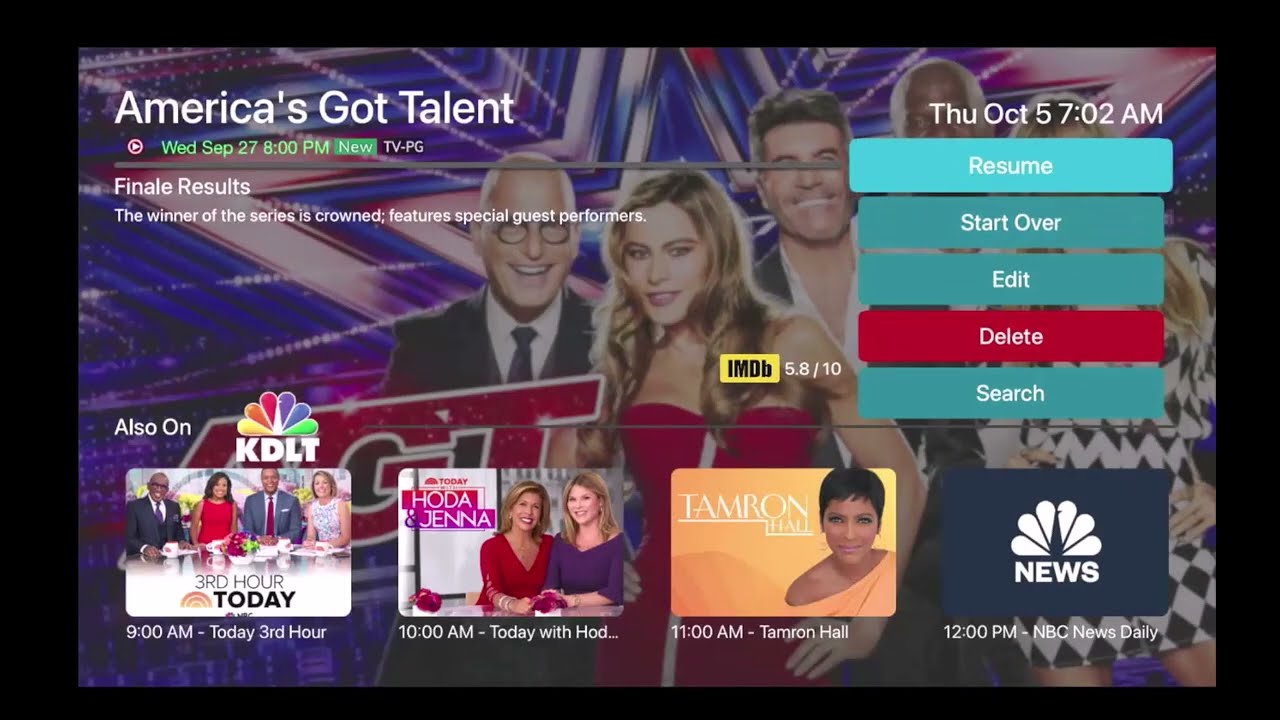
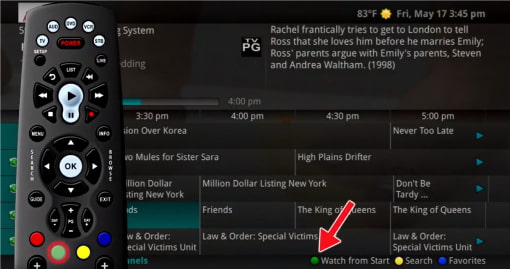
This feature lets you go back to the beginning of any currently-airing or in-progress recorded program that has the Restart option. Programs that have the Restart option display a Green and White Restart icon in the program description.

Restart TV is available on the Prime and Elite packages.

Press the guide button on the remote control and highlight the program you want to restart. Then press the Green button on the remote to Restart the program.

While watching the program you want to Restart, press the Info button on the remote and then press the Green button on your remote to Restart the program.

 Please note a DVR is required to record a show you’ve restarted. 

  1. Press the “Record” button on your remote.
  2. Then, choose either “One-Time” to record just that episode, or “Series” to record all episodes of the show.
  3. Press “OK” to start recording.
  4. You can now leave the restarted program by changing the channels or pressing the “Guide” button.
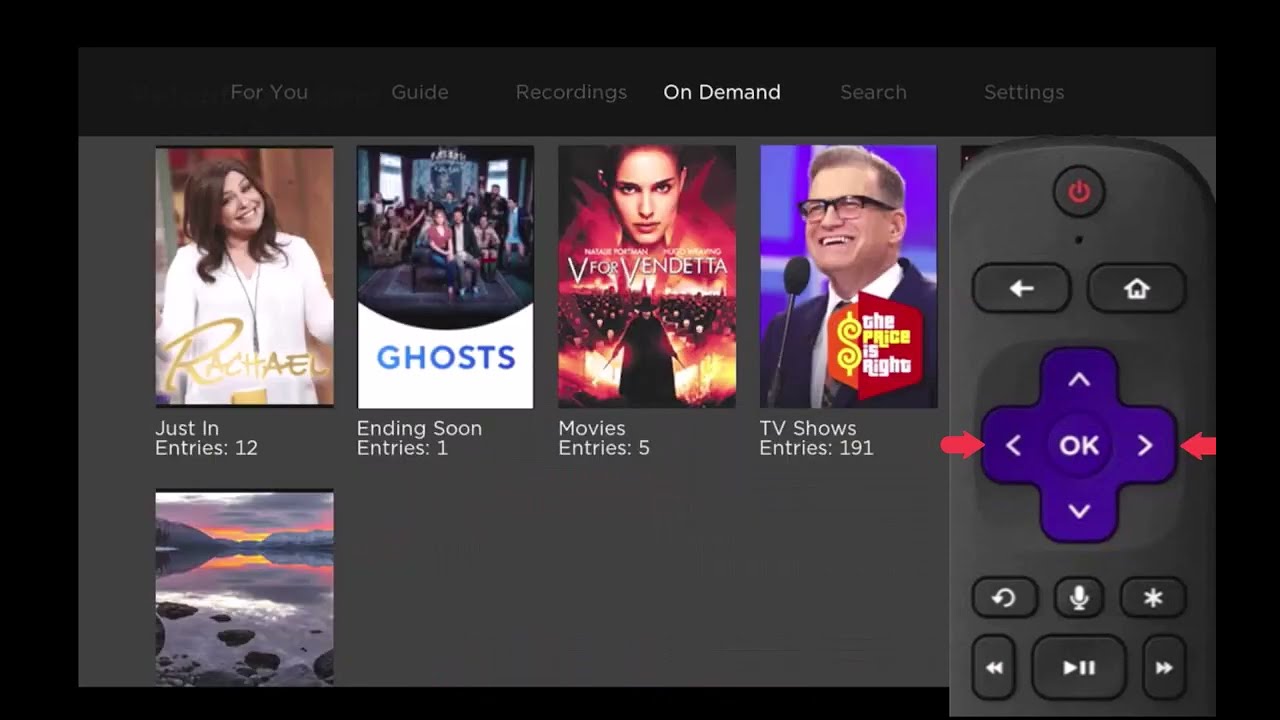
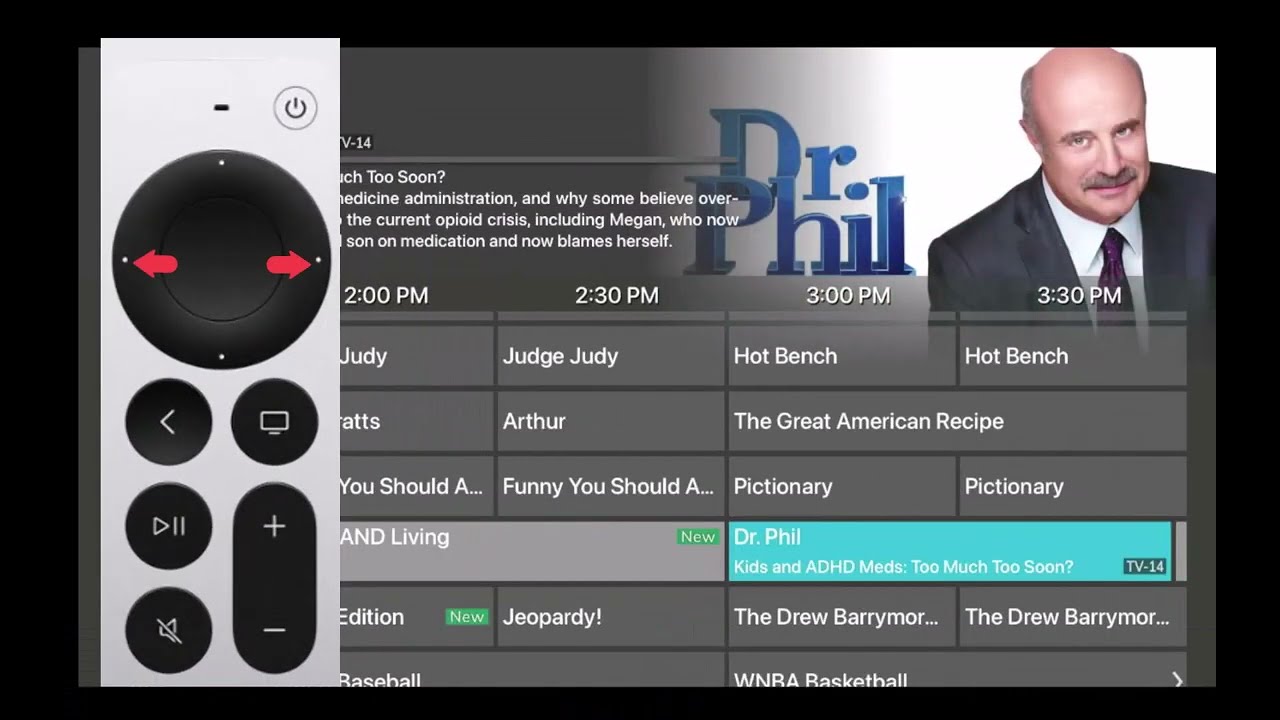
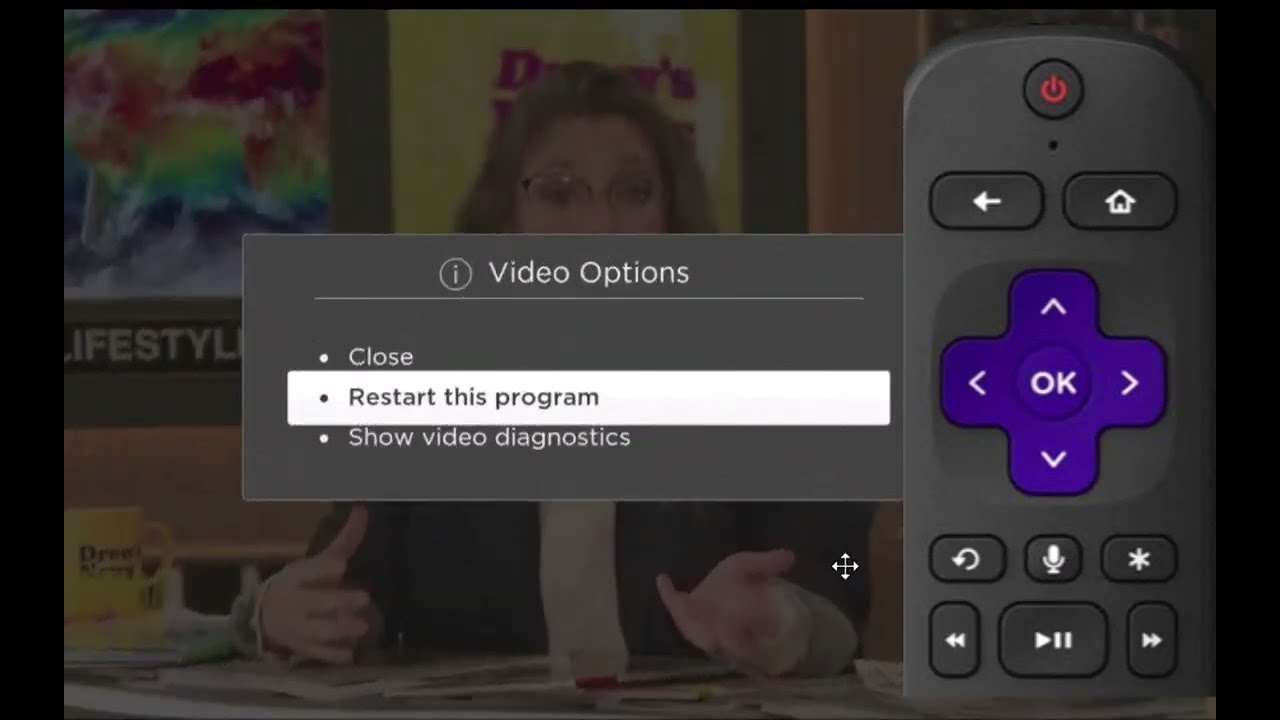
  1. From an in-progress program on your TV screen, press the right arrow on your Roku remote to open a Video Options window
  2. Highlight Restart this program and press OK on your remote.
  3. This will restart the program from the beginning.
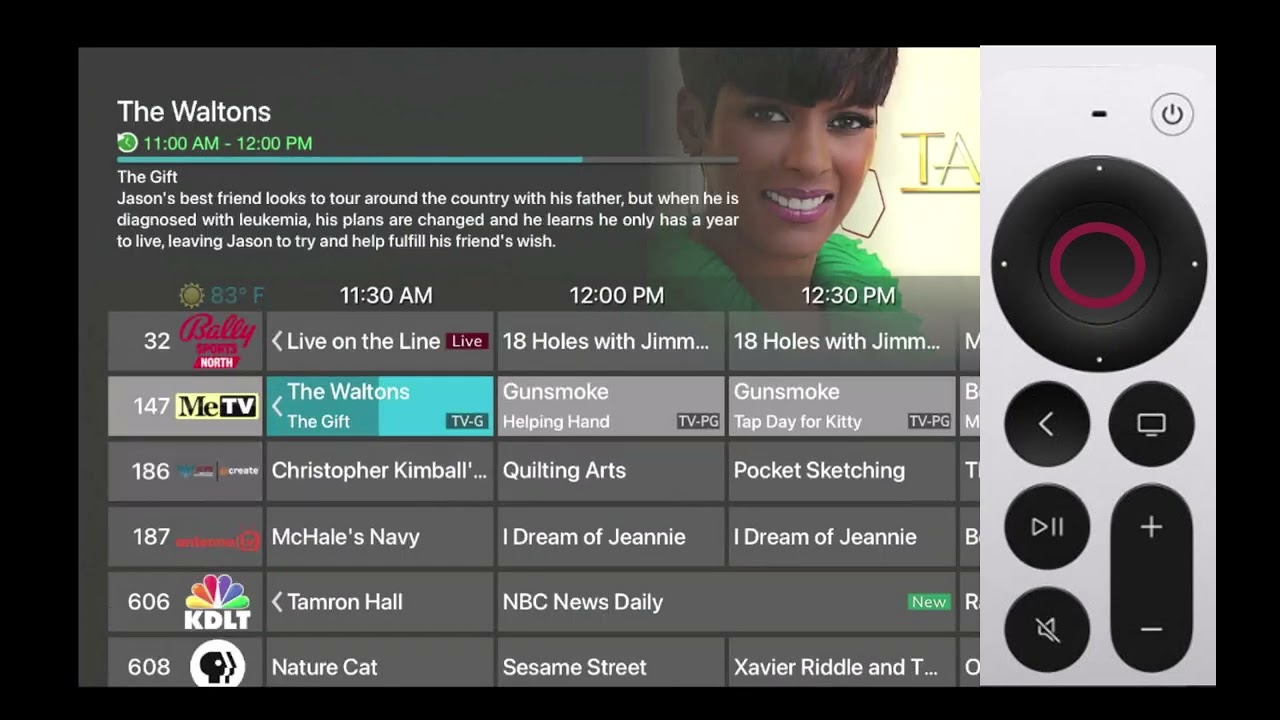
  1. From the Program Guide, highlight a currently airing program and press the center of your remote ring
  2. Press the top or bottom of your remote ring until you have highlighted Start Over
  3. press the center of your remote ring and the program will Restart from the beginning

Control your television with virtual assistants such as Google and Alexa

Keep up with the trends of using voice activation to control your TV viewing. Change a channel, search for programming, record a show and control more functions with your voice via the MyTVs app or with an Amazon Echo or Google Home device. Simply connect your smart speaker to your TV and enable the Channel Surfer app to begin use. Find complete user guides below for more details.

Compatible with a set-top device and MyTVs app only. 

  1. On a TV connected to a set-top device, click Menu
  2. Arrow down to Settings
  3. Navigate right to Apps and then Device Code. Press OK
  4. Enter the Registration Code into the Google Home App
  5. Ask the Google Assistant to “Talk to Channel Surfer”
  6. Click on the “Link to Channel Surfer” in your Google Home App
Use “Hey Google” for every command. 
  1. With a TV connected to a set-top device, click menu
  2. Scroll down to Settings
  3. Arrow right to Apps and then Device Code. Press OK
  4. Enter the Login Code into the Amazon Alexa App and click Submit
  5. Load the Channel Surfer into Your Skills of the Amazon Alexa App
  6. Click on the Channel Surfer Skill and click Enable
  7. Link your Amazon Alexa account with the Channel Surfer account

Use “Alexa” for every command.

  1. Click on the microphone icon at the top right-hand corner of the MyTVs app.
  2.  This will bring up a Voice Commands screen and show a list of available commands – App Commands, Remote Commands, and Extended Remote Commands.
  3. Click on the Microphone button and speak the command.

NOTE: You must have Microphone and Speech Recognition activated on your smartphone in the MyTVs App settings

Internet

Protect WiFi Router